
Problem/Question
First time sign up with All-In-One Tool application.
Logging in with the All-In-One Tool application.
Applicable To
SATO All-In-One Tool
Resolution/Answer
When you use All-In-One Tool for the first time, you are a guest and will have limited access. Users are encouraged to sign up and log in with their accounts so they can have full access to the functionality of this application.
- If you use the All-In-One Tool as a guest, you cannot perform the following operations.
- Export Printer Log
You can log in using your email address with our one-time authentication code. You can also log in with your Google account or Microsoft account.
The following procedure explains how to log in either by entering the printer password manually or by using a SATO ID AUTH account to retrieve the unique default password.
- Click the User icon on the upper right.
- Enter your email address and click [Get Authentication Code].
- An email confirmation dialog is shown. Confirm your email address and click [OK].

- You will receive an email with the authentication code sent from the system. Check your mailbox to get the authentication code from your email.
- Enter the last 6 characters of the authentication code with the first 3 characters identical to the login dialog.
- You need to enter the authentication code within 20 minutes after receiving the email. If the code is expired, click [Get Authentication Code] again to receive another new code.

- You need to enter the authentication code within 20 minutes after receiving the email. If the code is expired, click [Get Authentication Code] again to receive another new code.
- Click [Submit].
Enter your Username to be registered in All-In-One Tool and click [Submit].

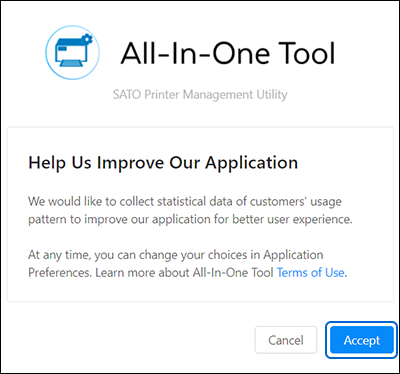
- The customers’ usage logging consent dialog is shown. Click the link to read the “Terms of Use” and click [Accept] to proceed.
Remarks
- After signing up, you can change your choice and disable the [Application Logs] setting on the [Application Preferences] page.
[04-80014-EN]