The barcode check function has a readable mode and a comparison mode. You can switch the mode or disable the function from the product's[Settings]menu.
1.
When the product is in Online mode, press thebutton on the operator panel to change to Offline mode.
2.
Press thebutton to show the[Settings]menu.
3.
Press the/buttons to select[Tools], and then press thebutton.
4.
Press the/buttons to select[Barcode Checker]>[Settings]>[Mode], and then press thebutton.
5.
Press the/buttons to select the mode for the barcode check function.
[Disabled]
Disable the barcode check function.
[Readable]
Enable readable mode.
[Comparison]
Enable comparison mode. This mode is for barcodes created by barcode commands.
6.
Press thebutton to save the setting value.
•
When the readable mode or comparison mode is set, a barcode reader connection error occurs if the barcode checker is not connected at product startup or at the start of printing.
•
Even if the readable mode or comparison mode is set, the barcode check is not done for print data that does not include any barcode data. Normal printing is done for that data.
•
In the readable mode, to include barcodes that are not created by barcode commands (such as graphic data or preprinted barcodes) as the check target, select[Setting]in[Set No. of Barcodes], and specify the number of barcodes per label in[Barcodes per Label].
•
When[VOID Print]is enabled, you can identify a defective label by printing error marks on it.
•
The log data of barcode check results is saved on the product and can be copied to the USB memory from the[Logs]menu. By enabling[Host Notification], you can also return check results to the host from which the print data is sent.
 button on the operator panel to change to Offline mode.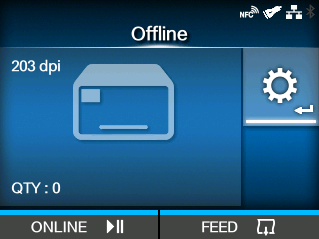
 button to show the
 /
/ buttons to select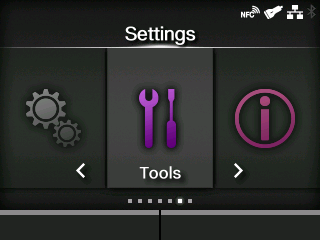
 /
/ buttons to select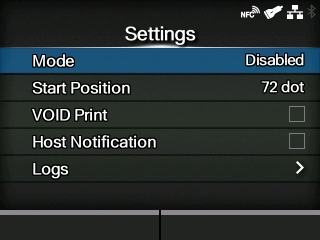
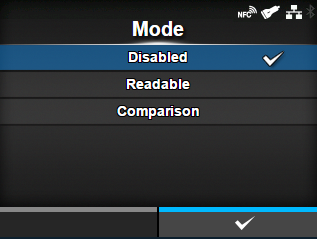
 button to save the setting value.