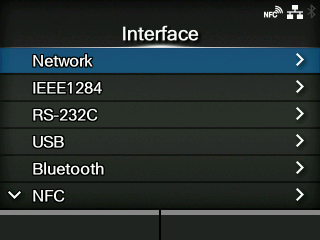
CL-NX Configuring the Interface Settings from the Interface Menu of the Product Miho 15 May 2026 11:20 Updated Configure the settings related to the interfaces from the [Interface]menu in the Settings mode of the product. 1. Press thebutton in Online mode. The product changes to Offline mode. 2. Press thebutton. The product changes to Settings mode. 3. Select[Interface]using the/buttons. 4. Press thebutton. The item list appears. 5. Select the interface using the/buttons. [Network] Sets the LAN connection and wireless LAN connection. [IEEE1284] Sets the IEEE1284 connection. Appears only if the combo interface board is installed. [RS-232C] Sets the RS-232C connection. Appears only if the combo interface board is installed. [USB] Sets the USB connection. [Bluetooth] Sets the Bluetooth connection. [NFC] Sets the NFC connection. *This feature is supported on products from serial number 6B~ and above. [Ignore CR/LF] Sets to ignore CR/LF codes. [Ignore CAN/DLE] Sets to ignore CAN/DLE codes. [External I/O] Sets the external signal (EXT). Appears only if the combo interface board is installed. [RFID](CL4NXonly) Sets the RFID. Appears only for the RFID model. 6. Press thebutton. The settings items of the selected interface appear. Change the settings according to the communication conditions of the connected network and computer.[03-01616-EN]

 button in Online mode.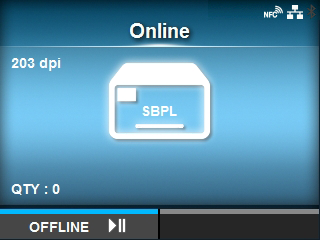
 button.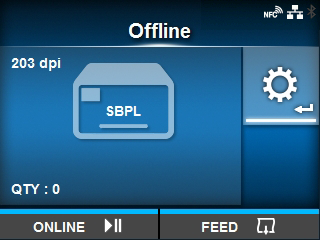
 /
/ buttons.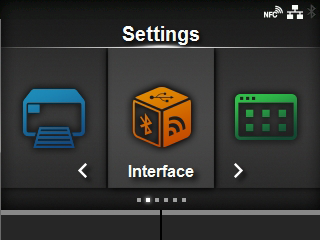
 /
/ buttons.