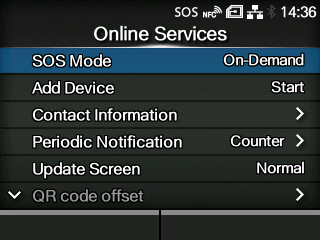
Applicable models: CL4/6NX
Set the functions for SOS (SATO Online Services).
To use SOS, it is necessary to first create an SOS account and add the product.
For details on the SOS, refer to the SOS portal site.
The setting items are as follows:
Select the mode of SOS (SATO Online Services) or disable SOS.
Set whether or not to allow setting the product (remote control) from SOS (SATO Online Services).
|
◦
|
Appears only if you have selected [Real-Time] in the [SOS Mode] menu.
|
Set the communication protocol of MQTT.
|
◦
|
Appears only if you have selected [Real-Time] in the [SOS Mode] menu.
|
Enable or disable the MQTT proxy.
|
◦
|
Appears only if you have selected [Real-Time] in the [SOS Mode] menu.
|
Shows the serial number and association code that are necessary when adding the product to SOS (SATO Online Services).
|
◦
|
Appears only if you have selected something other than [Disabled] in the [SOS Mode] menu.
|
Sets the SOS (SATO Online Services) contact information that is displayed at the time of the error outbreak.
|
◦
|
Appears only if you have selected something other than [Disabled] in the [SOS Mode] menu.
|
Sets the function for periodic SOS (SATO Online Services) notifications.
A specialized application is required to scan the QR code.
|
◦
|
Appears only if you have selected [On-Demand] in the [SOS Mode] menu.
|
Sets whether to print a QR code displayed with SOS (SATO Online Services) periodic notification or Daily Checkup.
A specialized application is required to scan the QR code.
|
◦
|
Appears only if you have selected [On-Demand] in the [SOS Mode] menu.
|
Adjust the print position for printing a QR code displayed on the notification screen for SOS (SATO Online Services).
|
◦
|
Appears only if you have selected [On-Demand] in the [SOS Mode] menu. Available if you have selected [Print] in the [Update Screen] menu.
|
Shows the current product information with a QR code. Scan the QR code with a tablet or smartphone, and send it to the SOS cloud.
Also, the product information can be acquired via NFC and sent to the SOS cloud.
A specialized application is required to scan the QR code or send the product information to the SOS cloud.
|
◦
|
Appears only if you have selected [On-Demand] in the [SOS Mode] menu.
|
Diagnoses the network environment to determine whether the Real-Time mode and the Light mode can be used when connecting to SOS.
[09-01791-EN]