
While the product is powered on, you can switch to the Home screen by pressing the  button.
The Home screen displays different screens depending on whether the product is in Online mode or Offline mode.
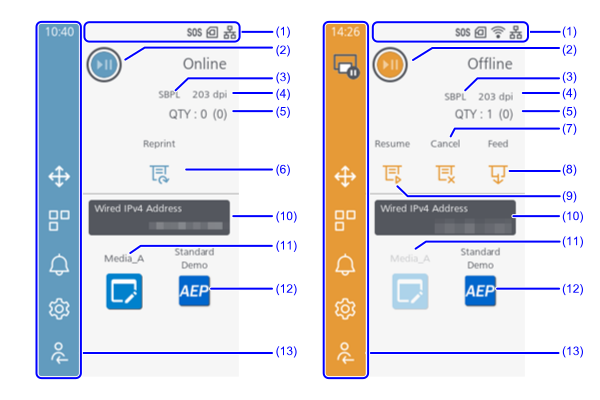
- Status bar
Icons that indicate the product' s status is displayed. For more information, see Checking the Product's Status (Status Icon). - Switch between Online mode and Offline mode
Tap the icon on the screen or press the button to switch between Online mode and Offline mode.
- Current printer language
Regarding available printer languages, see Switching Commands Automatically. - Resolution of the product
- Number of pages in the print job being processed
When [System] > [Show Total Count] in the settings menu is enabled, the total number of pages printed since the power was turned on is shown in parentheses. - Reprint
The previous data can be printed again.
Appears if the [Printing] > [Advanced] > [Reprint] in the settings menu is enabled. - Cancel
Cancel the print job. Disabled when there are no print jobs. - Feed
Feeds the media. - Resume
Resumes printing. Displayed when the print stop request command DLE is received and printing has stopped. - Widget
The widget created in [System] > [Home Screen] in the Settings menu will be displayed.
For more information, see Displaying Widgets. - Media Profile
The media profile (a combination of media type and media settings) created in [Printing] > [Media Profiles] in the settings menu will be displayed. Tap it to apply the media profile settings to the product.
For more information, see Setting Media Profiles. - Application
Applications for AEP will be displayed.
Appears if the [Applications] > [AEP] in the settings menu is enabled. - Menu Bar
[01-03346-EN]